
Introduction:
Have you ever noticed that your screen looks stretched, blurry, or doesn’t fit the monitor properly? This is often due to scaling issues. Monitor scaling refers to how your display adjusts to the resolution and size of your screen. Whether you are using a laptop, desktop, or an external monitor, scaling determines how text, images, and applications look.
Scaling your monitor ensures text, images, and apps display at the right size so your screen doesn’t look blurry, stretched, or uneven, helping you maintain clear visuals and a comfortable viewing experience with optimal clarity balance for everyday use.
If scaling is wrong, you may end up with distorted visuals, tiny unreadable text, or even part of the screen cut off. In this article, we will break down everything you need to know about scaling monitors—what it means, why it happens, how to adjust it, and solutions to common problems.
In This Article, we discuss “Scaling Monitor”.
What is Monitor Scaling?
The process of changing text, programs, and images to fit the dimensions and resolution of your screen is known as monitor scaling and display adjustment. It guarantees that the material on your screen is readable and proportioned correctly for comfortable and efficient viewing anytime.
For instance, everything would appear small on a 27-inch display with 4K resolution if scaling is not applied appropriately during system configuration changes. Inappropriate scaling, however, may produce large or blurry parts that reduce clarity significantly for users. Scaling is used to strike a balance between usability and clarity by ensuring consistent proportional content.
Why Scaling is Important:
Scaling matters because not all monitors are created equal, and hardware differs greatly today. A small 13-inch laptop with a 1080p resolution and a large 32-inch monitor with the same resolution will display content very differently due to varying pixel density. Without scaling, text might be too small on one device and too large on another, making readability challenging.
Proper scaling improves readability, enhances productivity, and ensures you enjoy the best possible visual experience across different applications and tasks.
How Monitor Scaling Works:

Scaling works by varying the pixel density, or DPI (dots per inch), which affects clarity. At higher DPIs, the information appears sharper and more detailed for improved on-screen viewing comfort. Scaling capabilities are included in Linux, macOS, and Windows systems to support different modern display types.
For example, Windows may recommend 125% or 150% scaling on a 4K display, which enlarges objects to roughly match their size on a lower-resolution monitor for improved readability. This allows consumers to enjoy the clarity of high resolution while maintaining usability without unnecessary strain.
Common Scaling Problems:
Scaling can sometimes cause frustrating issues. Blurry text, overlapping windows, or cropped images are common complaints. Applications that are not optimized for high-DPI scaling may look stretched or pixelated.
External monitors connected to laptops often face scaling mismatches where one display looks normal, but the other looks either too large or too small. These inconsistencies can affect workflow, especially if you’re switching between different screens.
Scaling on Windows:
Windows provides flexible scaling options under Display Settings. You can select preset scaling percentages such as 100%, 125%, 150%, and more, depending on your screen. Advanced scaling allows you to enter a custom value if presets don’t work well.
However, some older apps may not handle scaling properly, leading to blurry visuals. Windows also has compatibility settings that let you override scaling for individual programs.
Scaling on macOS:
Apple’s macOS is known for handling scaling more seamlessly. The system uses a feature called “Retina Display scaling,” which automatically adjusts the display to look sharp and proportional.
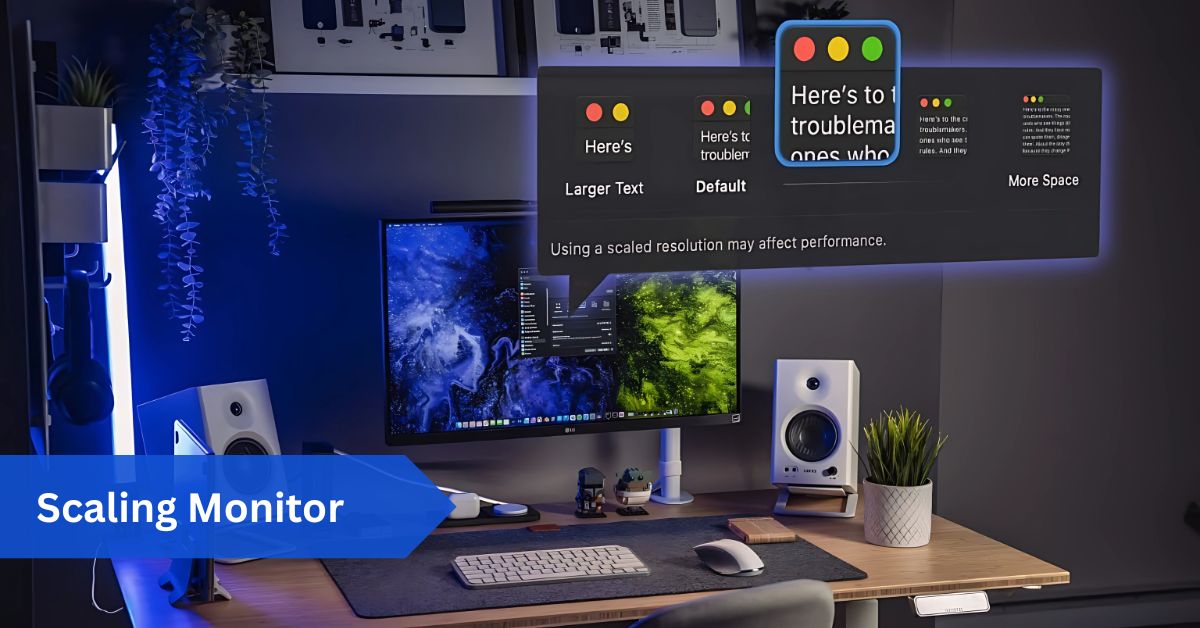
Users can choose between “Larger Text” and “More Space,” effectively changing how much content fits on the screen.macOS generally provides a smoother experience compared to Windows because most applications are optimized for Retina scaling.
Scaling on Linux:
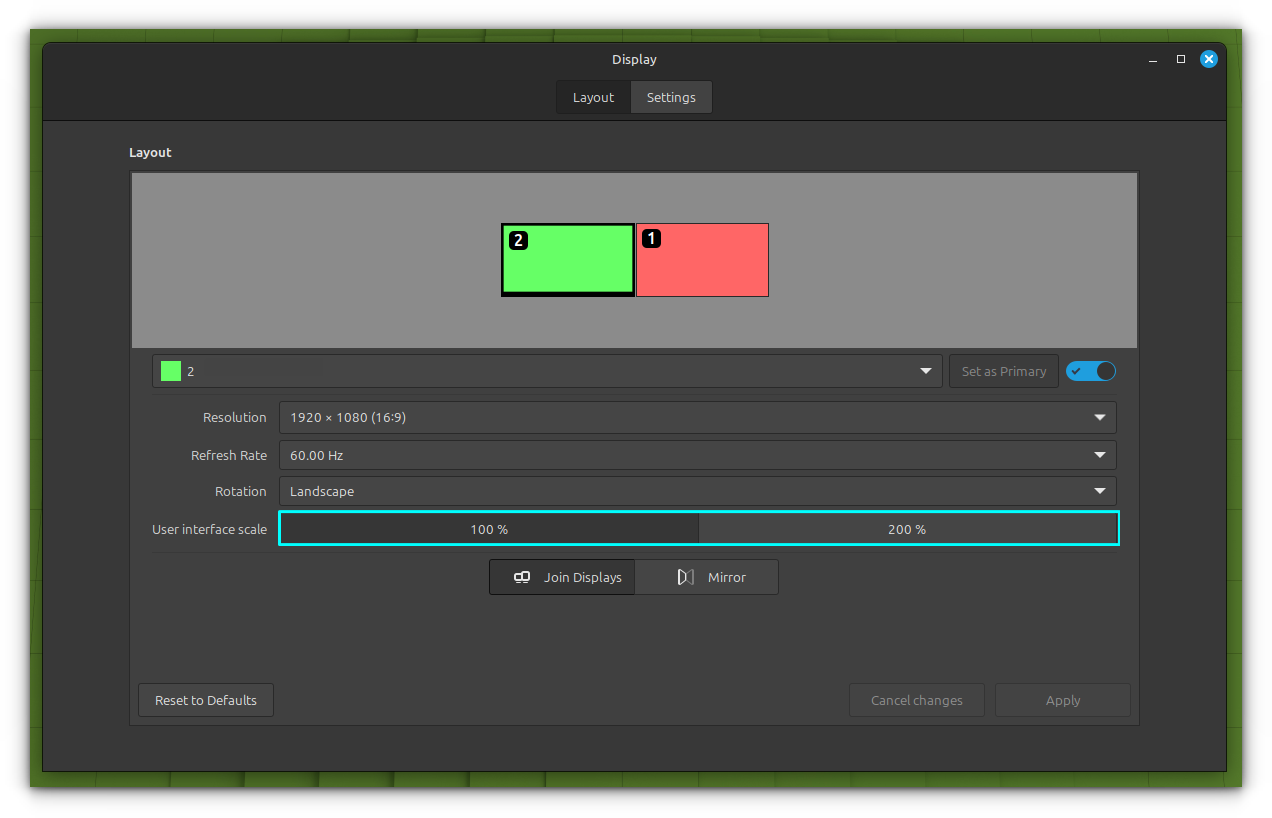
Linux users have different scaling challenges since multiple desktop environments exist. GNOME and KDE offer fractional scaling, which lets you adjust in smaller increments like 125% or 150%.
This flexibility is great, but not all Linux apps respond well to scaling. Some may look sharp while others appear blurry. Users often need to experiment with settings or even run apps with specific scaling commands.
Scaling with Multiple Monitors:
Connecting numerous monitors with different resolutions makes things more difficult. For example, a 1080p monitor paired with a 4K monitor may cause scaling mismatches. You may find one screen’s text is perfect while the other looks off.
Windows and macOS allow independent scaling settings for each monitor, but some applications may not adapt well when dragged across screens. This creates an uneven user experience.
Gaming and Scaling:
Gamers also face unique scaling issues. Running a game at native resolution usually gives the best performance and clarity, but if the scaling is off, the game might look stretched or have black bars.
Some graphics cards offer scaling options within their control panels, such as NVIDIA’s “GPU Scaling” and AMD’s “Integer Scaling.” These ensure that games render correctly, regardless of the monitor resolution.
How to Fix Scaling Issues:
Verifying your display settings is the first step in resolving scaling issues. Until the text and graphics appear comfortable, adjust the scaling percentage. Check compatibility settings or adjust scale per app if apps continue to seem fuzzy.
Try adjusting the scale of each external monitor independently. Since new graphics drivers frequently have enhancements for display handling, updating them can help fix scaling issues.
Custom Scaling:
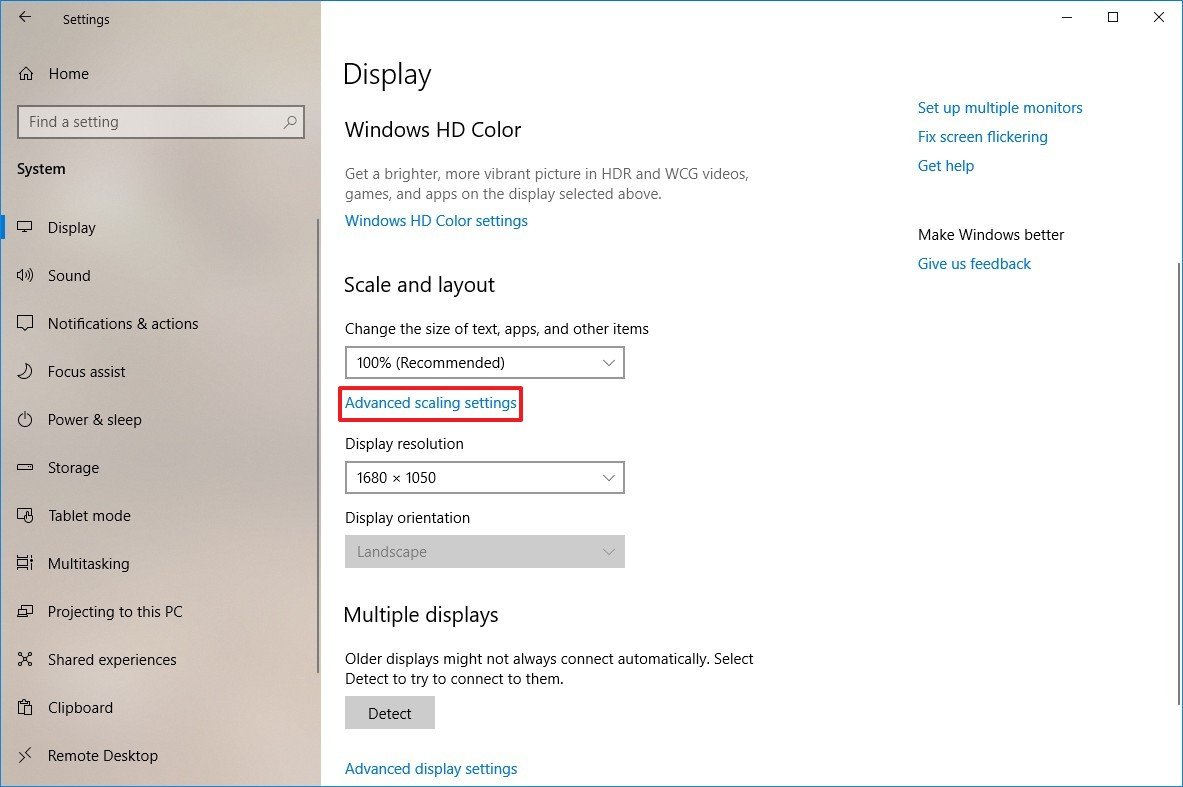
Sometimes, default options don’t cut it. That’s where custom scaling comes in. On Windows, you can set custom DPI scaling levels, although this may cause some apps to misbehave.
Custom scaling is useful if you need something in between the standard presets. For example, 135% scaling might be perfect for your setup, but not listed as an option.
High DPI and 4K Monitors:
With 4K and higher resolution panels, scaling is now more crucial than ever. Everything appears to be a bit out of balance. It might be necessary to raise scaling by 150% in order for text to be readable on a 27-inch 4K display.
However, excessive scaling can reduce screen real estate and squander the potential of a high-resolution panel. Finding the ideal balance between usefulness and clarity is crucial.
Scaling for Productivity:
With the right scale, productivity can rise dramatically. If your writing is too small, it can strain your eyes. If it’s too large, you’ll waste space and have to scroll further. You may achieve the ideal balance between comfort and effectiveness with the aid of balanced scaling.
Designers, video editors, and developers often need precise scaling to make their work easier and more efficient.
Scaling for Accessibility:
Scaling isn’t just about comfort—it’s also about accessibility. People with vision impairments rely on proper scaling to read text and navigate their devices.
Larger text, magnifiers, and high contrast settings all work alongside scaling to make technology more inclusive. This ensures that everyone, regardless of vision strength, can use their computer effectively.
Tips for Perfect Scaling:
Try out various scaling levels until you discover one that works for you. Use recommended settings as a starting point. Keep your graphics drivers updated. For multi-monitor setups, adjust each screen individually.
If certain apps look blurry, check for updates or enable DPI awareness. Remember, there’s no one-size-fits-all solution—scaling depends on your monitor, resolution, and personal preference.
Conclusion:
Scaling monitors may sound like a technical subject, but it directly affects how comfortable and enjoyable your computing experience is. Whether you’re reading, gaming, or working, getting scaling right can make a world of difference.
From Windows to macOS to Linux, every platform has tools to help you adjust scaling, but the best settings depend on your screen and your needs. Take time to experiment, balance clarity with usability, and you’ll unlock the full potential of your monitor.
FAQs:
1. Why does my monitor look blurry after scaling?
Blurriness often happens when an app isn’t optimized for high-DPI displays. Adjust compatibility settings or check for app updates.
2. Can I use different scaling settings for multiple monitors?
Yes, both Windows and macOS allow independent scaling settings, but some apps may not display consistently across screens.
3. What scaling should I use for a 4K monitor?
Most people find 150% scaling comfortable on a 27-inch 4K monitor, but it depends on your eyesight and preference.
4. Does scaling affect gaming performance?
Scaling itself doesn’t reduce performance, but running games at non-native resolutions may impact clarity or frame rates.
5. How do I fix scaling issues in older applications?
Try enabling “Override High DPI Scaling” in compatibility settings or look for newer, DPI-aware versions of the software.
6. Why does my external monitor scale differently nowadays?
This happens because different screens have varying resolutions and pixel densities, causing inconsistent scaling behavior.
7. Is custom scaling always completely safe to use?
Yes, but some older apps may appear blurry or misaligned when using custom scaling adjustments.
8. Why does scaling reset after every system restart?
It usually happens due to outdated drivers or corrupted display profiles, causing repeated detection issues.
9. Can scaling affect screenshot appearance on various devices?
Yes. Screenshots capture the monitor’s real resolution, making them look sharper or larger sometimes.
10. How do I fix tiny text issues effectively now?
Try increasing scaling percentage, adjusting resolution settings, or using accessibility font-size features.
Read More:
CPU Temp Monitor: Guide to Monitoring and Managing Your Processor Temperature
Vertical Monitor: Guide to Productivity, Coding, and Everyday Use
32-Inch Monitor: Guide for Gaming, Productivity, and Everyday Use
240Hz Monitor: Guide for Gamers, Creators, and Professionals