
Introduction:
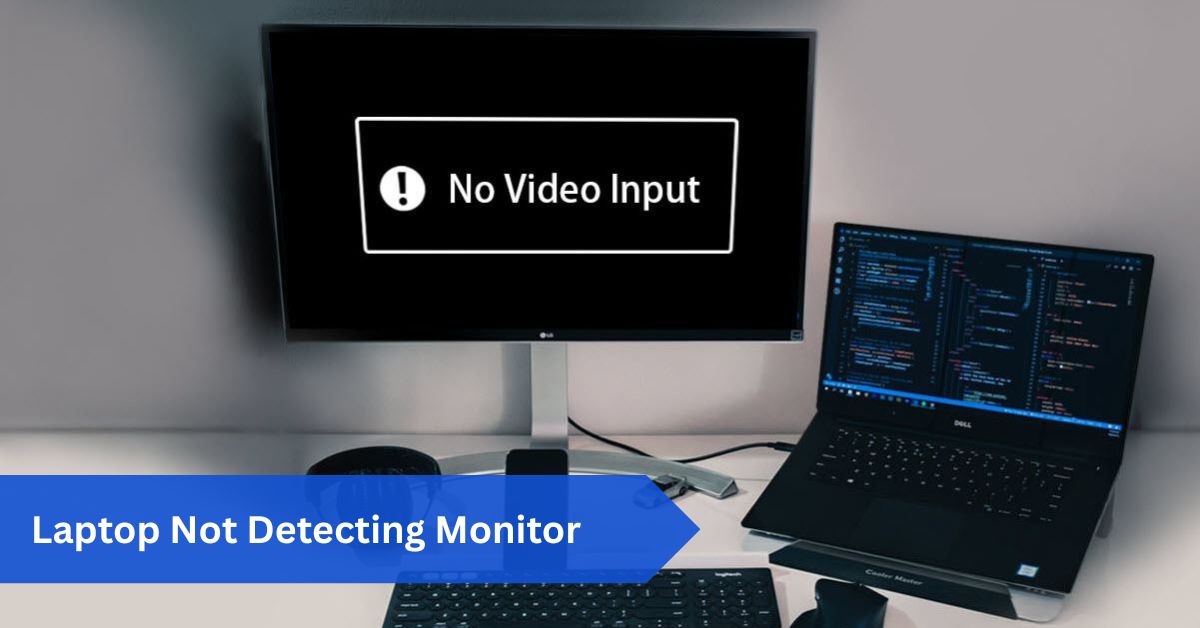
You sit down at your desk, plug your laptop into an external monitor, and wait for that satisfying moment when your screen expands, giving you more room to work or game. But instead of a crystal-clear display, the monitor just stays black.
A laptop not detecting monitor is usually caused by simple issues like loose cables, wrong input settings, outdated drivers, or incompatible adapters, and most problems can be fixed quickly by checking connections, adjusting display settings, updating graphics drivers, or testing different cables and ports.
Maybe it flashes a “No Signal” warning, or worse, nothing happens at all. Frustrating? Definitely. But don’t worry—this is one of those common tech issues that usually has a simple fix.
If your laptop is not detecting your monitor, chances are it’s either a minor configuration hiccup, a faulty cable, or something as easy as switching a setting. The good news is that troubleshooting it doesn’t require you to be an expert computer user.
We’ll go through every reason why your laptop could not be identifying your display in detail in this tutorial, along with solutions. Your display will be operational again by the time you’re finished.
Why Laptops Fail to Detect Monitors:
Your laptop communicates with your monitor using hardware ports, cables, drivers, and software settings. If something breaks in that chain, the signal won’t pass through. Common reasons include loose connections, outdated graphics drivers, wrong display settings, or even using a cable that doesn’t support the resolution.
Sometimes the monitor itself might not be compatible with your laptop. The key is to identify which link in the chain is causing the issue.
Start with the Simple Checks:
We frequently assume the worst when something doesn’t function. Sometimes, however, the issue is so fundamental that we fail to notice it. Start with the easiest steps first. Does the monitor have power on? Verify the power button and cable one more time. Are both ends of the cord securely fastened?
It is possible to avoid detection even with a somewhat slack connection. Does the monitor have the proper input source selected? You won’t receive any signal if the display is expecting DisplayPort, but you’re connected via HDMI. You could avoid needless frustration for hours by doing these easy checks.
Swap Cables and Ports:
It is common for cables to break. Over time, they deteriorate, warp, or deteriorate. Try using a different cable first if you are experiencing trouble identifying your display. Select a different HDMI cable that you are certain will work if you are utilizing HDMI.
Try swapping ports if your laptop offers multiple display connectors, such as HDMI, USB-C, or Mini DisplayPort. Try your display on a separate device, like a laptop or game console, as well. If it functions properly there, you are aware that your laptop—not the monitor—is the problem.
Tweak Your Display Settings:
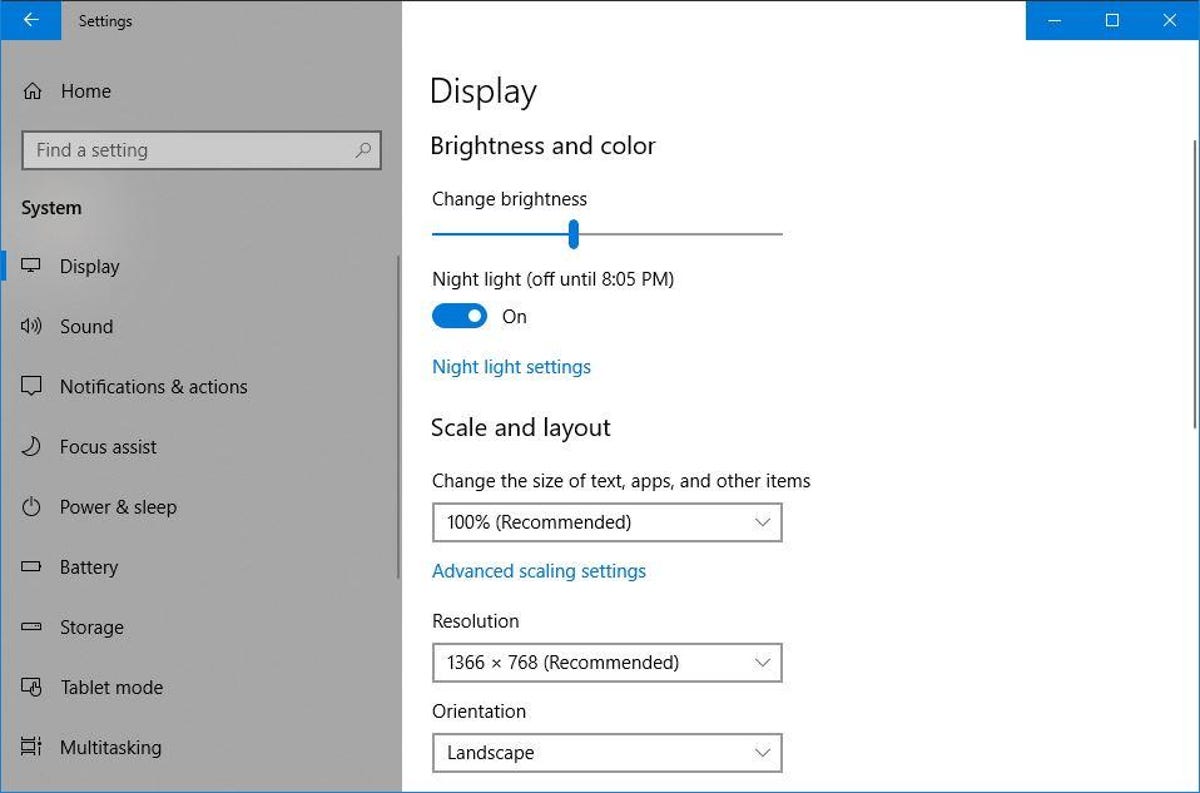
Sometimes it takes a little prod to get your laptop to identify the monitor. In Windows, the display projection menu can be accessed by pressing Windows Key + P. You’ll see options like Duplicate, Extend, and Second Screen Only.
Check to see if your monitor reacts by cycling through them. Click “Detect Displays” after selecting System Preferences > Displays on a Mac. This function makes your laptop look for an external monitor, which frequently fixes the issue right away.
Update or Reinstall Your Graphics Drivers:
Between your laptop and monitor, your graphics driver serves as a translator. The devices cannot “talk” correctly if it is out of date or corrupted. Locate your display adapter in Device Manager on Windows, then right-click and choose Update Driver. Restart your laptop and remove the driver if updating doesn’t resolve the issue.
Windows will automatically reinstall a new version. Keeping macOS updated on a Mac guarantees that your graphics drivers are also up to date. Although a driver update might not seem like much, it frequently resolves significant detection issues.
Restart Both Devices:
Restarting it is a tried-and-true tech solution that works surprisingly well. Turn off your laptop and display, unplug them for a minute or so, then plug them back in and restart. This fixes short-term issues and enables a successful device reconnect. It’s similar to giving your device a quick snooze so it can reboot.
Check Compatibility:
Not all laptops and monitors are meant to work perfectly together. For example, an older laptop may not support a modern 4K monitor at 120Hz. Similarly, some laptops only output video through specific ports like USB-C with DisplayPort support, while others may limit resolution on certain outputs.
Check your laptop’s specifications to confirm what resolutions and refresh rates it supports. Matching these settings with your monitor’s capabilities can prevent detection issues.
Adjust Resolution and Refresh Rate:
There are instances when the signal your laptop is producing is too strong for your monitor to handle. The monitor could remain blank if the refresh rate or resolution is set too high. On Windows, right-click your desktop, go to Display Settings, and under Advanced Display Settings, adjust the resolution and refresh rate.
Start at a lower resolution and gradually increase it. On Mac, go to Displays preferences and try scaling down the resolution. If the monitor works at a lower setting, then you’ve found the issue.
Try Safe Mode:
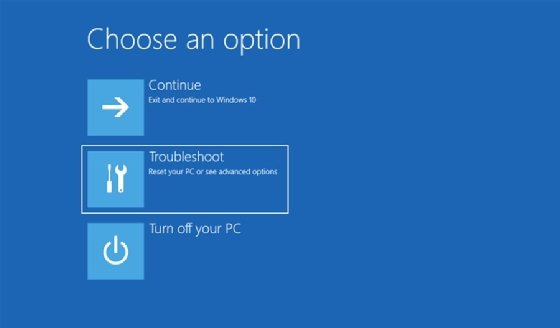
Only necessary drivers are loaded in Safe Mode, which is a streamlined version of your operating system. If your display is operating in Safe Mode, software or incompatible drivers are probably the cause of the issue. On Windows, restart while holding Shift and use the Advanced Startup option to enter Safe Mode.
Hold down the Shift key while restarting a Mac. Verify that the monitor is identified after entering Safe Mode. This can assist in determining if the problem is with the software or the hardware.
Use the Right Adapter or Docking Station:
Due to their compact design and frequent omission of conventional connections, modern laptops require docking stations or adapters to connect to monitors. The problem is that not all adapters are made equally. For example, if a USB-C port does not support video output, a USB-C to HDMI adapter will not work.
In a similar vein, inexpensive adapters might not send signals correctly. Always confirm that the adapter is compatible with the port on your laptop and allows video output. You can also avoid a great deal of frustration by purchasing a high-quality docking station.
Check BIOS or Firmware:
Sometimes the issue lies deeper than Windows or macOS. BIOS or UEFI settings can control how your laptop handles external displays. Restart your laptop, enter BIOS (commonly by pressing F2, F12, or Delete during startup), and look for display-related settings.
Also, keeping your BIOS or firmware updated ensures better compatibility with modern monitors. While it’s rare, outdated firmware can sometimes block detection.
Inspect for Hardware Damage:
If nothing works, consider physical damage as a possibility. Inspect your laptop’s ports carefully. Are they loose, cracked, or filled with dust? A bent HDMI or USB-C port could easily stop a monitor from being detected.
Do the same for your monitor’s input ports. Sometimes the issue isn’t with software at all, but with the physical connectors. If you spot damage, professional repair may be the only solution.
When to Get Professional Help:
If you’ve tried everything and your laptop still won’t detect your monitor, it’s time to call in the experts. A repair shop or your laptop manufacturer’s support team can run deeper diagnostics.
They can test whether the issue is with the graphics card, motherboard, or ports and suggest repair or replacement. While DIY fixes can solve most cases, hardware issues sometimes require professional hands.
Tips to Prevent Future Issues:

Prevention is the best remedy. Always use top-notch cables and adapters that can handle the required refresh rate and resolution. Cables should not be violently bent or yanked out since this will eventually harm ports. Update the firmware on your laptop and monitor regularly.
To avoid dust accumulation, use compressed air to clean the ports on your laptop every few months. Additionally, to lessen the strain on your laptop’s connections, think about purchasing a docking station if you frequently connect your device to external displays.
Real-Life Example:
Imagine you’re setting up for an important presentation, and your laptop refuses to detect the projector or monitor. Panic sets in. But if you’ve practiced these troubleshooting steps, you’d know to quickly check the input source, swap the HDMI cable, or press Windows Key + P to extend the display.
Within minutes, you’d have the display working, saving yourself from an embarrassing situation.
Common Myths About Laptops and Monitors:
Some myths are worth dispelling. It’s a frequent misconception that all HDMI cables are created equal. In actuality, older cables might not be able to handle greater refresh rates or resolutions, which could lead to problems with detection. The idea that upgrading drivers is dangerous is another misconception. You indeed need the correct drivers, but one of the greatest ways to prevent issues is to keep them updated.
Additionally, some individuals believe that if a monitor is not recognized, it is malfunctioning. Usually, connectors, settings, or drivers are the problem, not the monitor itself.
Conclusion:
A laptop not detecting monitor may seem like a major issue, but it’s often something simple. Start with the basics like checking cables, ports, and input sources.
Then move on to settings, drivers, and adapters. If all else fails, inspect for hardware damage or seek professional help. Most importantly, don’t panic—this is one of the most common tech hiccups, and with patience, you’ll likely have your display working again in no time.
Remember, your laptop and monitor are like teammates; they just need the right connection and communication to function perfectly together.
FAQs:
1. Why is my laptop not detecting monitor even though it’s plugged in?
Usually, it’s due to loose cables, wrong input settings, outdated drivers, or hardware issues.
2. Can a faulty HDMI cable stop my monitor from working?
Yes, cables are a common culprit. Try swapping it out with a new one to test.
3. How do I force my laptop to detect the monitor?
On Windows, open Display Settings and click Detect. On Mac, go to Displays and click Detect Displays.
4. Can updating drivers fix this problem?
Absolutely. Outdated or corrupted graphics drivers are often the main cause.
5. Does connecting my laptop to a monitor require an adapter?
Yes, if the port on your laptop isn’t the correct one. Just make sure the adapter supports video output.
6. Why does my monitor say “No Signal” even when it’s connected?
This often means the input source on the monitor is set wrong or the cable is faulty.
7. Can using a docking station fix detection issues?
Yes, if you use a high-quality docking station that supports video output, it can help stabilize connections.
8. Does resolution mismatch cause laptops to miss monitors?
Yes, if the laptop outputs a resolution that the monitor can’t handle, it may not display anything.
9. Should I try Safe Mode to troubleshoot?
Yes, Safe Mode can help determine if the issue is caused by software or conflicting drivers.
10. How do I keep my laptop ports working longer?
Handle cables gently, avoid bending ports, clean them regularly, and use docking stations when possible.