
Introduction:
Every computer user, whether a casual gamer, content creator, or IT professional, has one thing in common: they rely on a CPU (Central Processing Unit) to power their tasks. The CPU is essentially the brain of your PC, and just like the human brain, it performs best within certain conditions. One of the most important conditions is temperature control.
A CPU temp monitor helps you track your processor’s heat levels in real time, ensuring your computer doesn’t overheat or slow down during demanding tasks like gaming, video editing, or multitasking. By monitoring temperature changes, you can catch cooling issues early, prevent thermal throttling, and extend the overall lifespan of your hardware.
This is where a CPU temp monitor comes in. A CPU temperature monitor is a software or hardware tool that reads the temperature sensors built into your processor and reports the temperature of your CPU. Keeping tabs on this number isn’t just for enthusiasts—it’s essential for preventing overheating, protecting hardware, and ensuring your computer performs at its best.
In this guide, we’ll explore:
- Why monitoring CPU temperature matters.
- Safe temperature ranges for modern CPUs.
- Step-by-Step Methods to Check CPU Temperature Across Different Systems.
- The best free and paid CPU temp monitor tools.
- What to do if your CPU is running hot.
- Long-term maintenance tips for CPU health.
- Future trends in temperature monitoring.
By the end, you’ll know everything you need to keep your processor safe, efficient, and long-lasting.
Why Monitoring CPU Temperature Matters:
Ignoring your CPU’s temperature is like driving a car without ever looking at the fuel gauge—you might get away with it for a while, but eventually, problems will appear.
Here’s why monitoring matters:
1. Preventing Overheating:
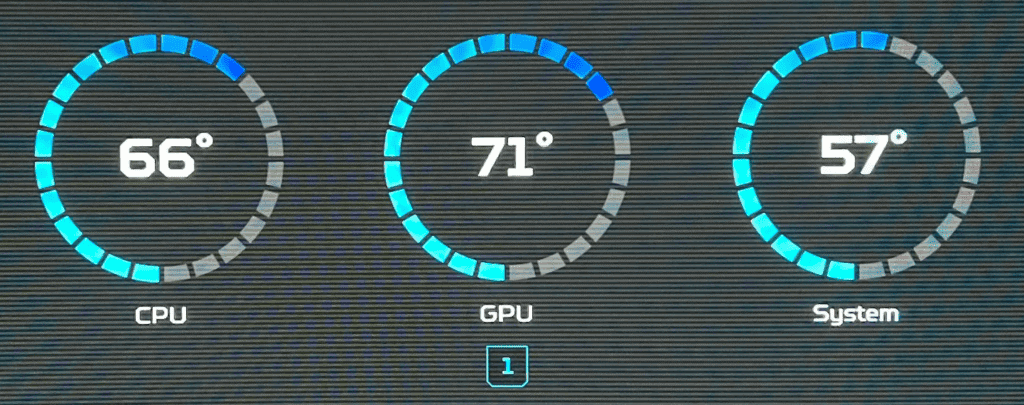
Modern CPUs generate heat as they process instructions. If this heat builds up beyond safe limits, the chip may throttle performance or even shut down to avoid permanent damage. A CPU temp monitor gives you real-time visibility, so you can catch overheating before it causes crashes.
2. Protecting Hardware Investment:
High temperatures accelerate wear and tear on silicon transistors inside the CPU. Over time, this reduces efficiency and can lead to premature failure. Considering that high-end CPUs cost hundreds of dollars, it makes sense to protect your investment with monitoring.
3. Maintaining Peak Performance:
CPUs include thermal throttling mechanisms. When temperatures exceed a threshold, the processor lowers clock speeds to reduce heat output. This keeps the chip safe, but it means slower performance for you. Monitoring ensures you catch throttling early and address its cause.
4. Supporting Overclocking Safely:
Enthusiasts who overclock their CPUs to achieve higher performance must be especially vigilant about temperature. A temp monitor is the primary tool for ensuring that your overclocked system remains within safe operating ranges.
5. Diagnosing System Issues:
If your computer feels unusually sluggish, overheats, or shuts down unexpectedly, CPU temperature readings can provide critical clues. For example, consistently high temps may point to dust buildup, failing fans, or poor case airflow.
In short: monitoring your CPU’s temperature isn’t optional—it’s part of responsible PC ownership.
Safe CPU Temperature Ranges:
The question most people have is: what’s a safe temperature for my CPU? The answer depends on several factors, including your CPU brand, workload, and cooling system.
Idle Temperatures:
When your system is powered on but not running heavy tasks:
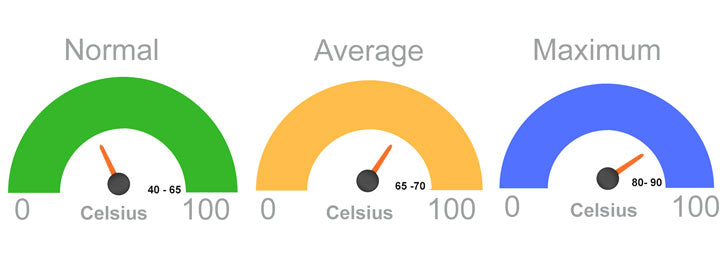
- Desktop CPUs: 30°C – 50°C is typical.
- Laptop CPUs: 40°C – 60°C is common due to tighter thermal constraints.
Load Temperatures:
When gaming, rendering, or performing intensive tasks:
- General safe range: 60°C – 80°C.
- Some modern CPUs (like AMD Ryzen 7000 and Intel Raptor Lake chips) are designed to tolerate 90°C – 95°C under load without issues.
Maximum Safe Limit (TjMax):
Every CPU has a manufacturer-defined Tjunction Maximum (TjMax), usually between 95°C and 105°C. If your CPU reaches this point, it will throttle or shut down to protect itself.
AMD vs Intel CPUs:
- AMD Ryzen processors: Ryzen 5000 and 7000 series often run hot by design, with 95°C still considered “within spec.”
- Intel CPUs: High-end Core i9 processors may hit 100°C under heavy load, but most users should aim to stay under 85°C for longevity.
Key Rule of Thumb:
If your CPU regularly exceeds 85°C under load, it’s time to take action.
Common Causes of High CPU Temperature:
If your CPU temp monitor shows consistently high readings, you’ll need to diagnose the cause. The most common culprits include:
- Dust Buildup – Dust clogs fans and heatsinks, reducing airflow.
- Poor Case Airflow – A case with limited intake/exhaust fans traps hot air inside.
- Old or Dry Thermal Paste – Over time, the paste between the CPU and cooler degrades, reducing heat transfer.
- Overclocking Without Adequate Cooling – Higher voltages and frequencies generate more heat.
- Background Processes – Hidden apps running in the background may drive CPU usage unnecessarily.
- Small-Form-Factor PCs or Laptops – Compact builds often struggle with heat dissipation.
Best CPU Temp Monitoring Tools:
Now, let’s dive into the most popular and reliable CPU temp monitor tools available in 2025.
1. Open Hardware Monitor:
- Free and Open Source.
- Supports Intel and AMD CPUs, NVIDIA and AMD GPUs, and even hard drive temps via SMART.
- Displays temperatures, voltages, fan speeds, and load.
- Works on Windows (XP – 10) and Linux.
- Can show values in a desktop gadget or system tray.
2. Core Temp:
- Lightweight, no-frills program.
- Shows temps for each CPU core.
- Supports Intel, AMD, and VIA processors.
- Mobile monitoring via Android/Windows Phone extensions.
- Offers plug-ins for customization.
3. HWMonitor:
- Extremely popular monitoring tool.
- Displays CPU, GPU, and motherboard stats.
- Shows voltages, clock speeds, fan RPM, and more.
- Free version available; Pro version adds logging and remote monitoring.
4. NZXT CAM:
- Modern, sleek interface.
- Designed for NZXT products but works on any PC.
- Includes in-game overlay for CPU/GPU temps.
- Can run in “Guest Mode” without an account.
5. MSI Afterburner:
- Known as a GPU overclocking tool, but also displays CPU temps.
- Useful for gamers who want an overlay while playing.
6. AIDA64:
- Professional-grade tool.
- Extremely detailed monitoring and stress testing.
- Paid software, but highly respected in enthusiast and IT circles.
7. BIOS/UEFI Monitoring:
- Nearly all motherboards display CPU temp in the BIOS.
- Useful for a quick idle check, though not under load.
Each of these tools has pros and cons. Beginners often prefer Core Temp or NZXT CAM for simplicity, while advanced users lean toward HWMonitor or AIDA64 for detailed control.
How to Check CPU Temperature on Different Systems:

1. In Windows:
- Download and install a tool like Core Temp, HWMonitor, or NZXT CAM.
- Launch the program and check the temperature readouts.
- Enable taskbar icons or overlays for real-time monitoring.
2. In BIOS/UEFI:
- Restart your computer.
- During startup, press the BIOS key—most often Delete or F2.
- Navigate to “Hardware Monitor” or “PC Health.”
- View CPU temp at idle.
3. On Linux:
- Install lm-sensors and run the sensors command.
- Alternatively, use Psensor GUI for a visual display.
4. On macOS:
- Use third-party tools like iStat Menus or Intel Power Gadget (for Intel Macs).
- For Apple Silicon Macs, iStat Menus provides basic temperature readings.
How to Reduce High CPU Temperature:
If your CPU temp monitor shows consistently high values, here’s what to do:
- Clean Your PC – Use compressed air to remove dust from fans, heatsinks, and vents.
- Improve Airflow – Add intake/exhaust fans, or reorganize cables for better circulation.
- Reapply Thermal Paste – Replace old paste every 2–3 years with a quality thermal compound.
- Upgrade Cooling – Consider a larger air cooler or liquid cooling (AIO or custom loop).
- Undervolt CPU – Reducing voltage slightly can lower temps without losing performance.
- Optimize Background Processes – Disable unnecessary startup apps and services.
- Keep Room Temperature in Mind – A hot environment directly impacts CPU cooling.
Best Practices for Long-Term CPU Health:
- Monitor temps monthly to catch issues early.
- Avoid aggressive overclocks unless you have advanced cooling.
- Keep drivers, firmware, and BIOS updated for efficiency.
- Ensure your PSU delivers stable power to reduce heat stress.
- Consider setting custom fan curves for proactive cooling.
Future Trends in CPU Temp Monitoring:
Looking ahead, CPU monitoring is becoming smarter and more automated.
- AI-driven cooling systems that adjust fan speeds dynamically.
- Cloud-based monitoring for servers and data centers.
- Built-in real-time OS notifications for temperature alerts.
- Integration with smart home systems, so your PC can trigger room cooling.
- Advanced cooling tech, such as liquid metal and graphene, boosts heat transfer.
Conclusion:
Your CPU is the beating heart of your computer, and monitoring its temperature is one of the simplest, most effective ways to protect performance and extend its lifespan. Whether you use a lightweight tool like Core Temp, a detailed program like HWMonitor, or an all-in-one solution like NZXT CAM, the important part is staying informed.
By following the steps in this guide, you’ll not only keep your CPU safe but also ensure your PC runs smoother, faster, and longer.
FAQs:
1. Which CPU temperature monitor is best for Windows?
Core Temp and HWMonitor are the most popular choices for Windows users. These tools are lightweight, accurate, and give you real-time insights into CPU performance.
2. What’s a safe CPU temperature while gaming?
Most CPUs are safe between 60°C and 80°C while gaming. If your temps are consistently higher, you may need better cooling or improved airflow.
3. Can high CPU temperature damage my computer?
Yes, prolonged high temperatures can degrade or permanently damage components. Over time, excessive heat reduces CPU lifespan and may affect other parts like the motherboard.
4. How do I check CPU temp without software?
Enter BIOS/UEFI during startup and look under Hardware Monitor. This method only shows idle temps, so use software for detailed load monitoring.
5. How frequently should I monitor the temperature of my CPU?
Every few months—or whenever you notice slowdowns. Routine checks let you catch dust and cooling issues before they cause real trouble.
Read More:
Vertical Monitor: Guide to Productivity, Coding, and Everyday Use
32-Inch Monitor: Guide for Gaming, Productivity, and Everyday Use
240Hz Monitor: Guide for Gamers, Creators, and Professionals
The Ultimate Guide to 24-Inch Monitors: Everything You Need to Know